
All Controls Demo
The Wizard-AllControls.ps1 example provides a comprehensive showcase of every input and display control available in the PoshUI.Wizard module.
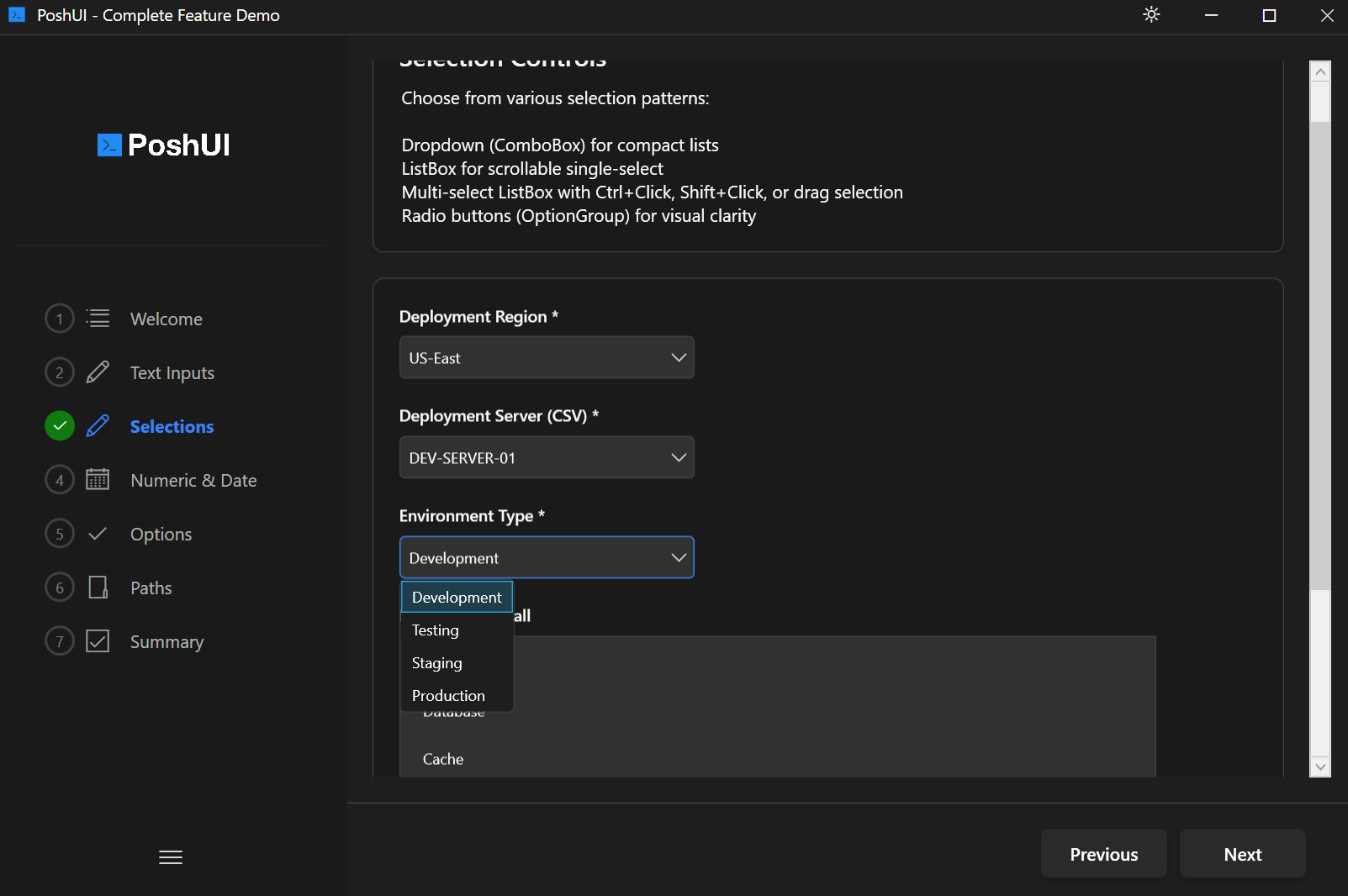
Overview
This example is designed to serve as a reference for developers. It organizes controls into multiple steps, demonstrating the look, feel, and return data type of each component.
Key Features Demonstrated
- Text Inputs: Standard TextBox, MultiLine (text area), and secure Password fields.
- Selection Controls: Dropdowns (static and editable), ListBoxes, and OptionGroups (radio buttons).
- Boolean Controls: Checkboxes and modern Toggle switches.
- Numeric & Date: Precision number spinners and calendar-based date pickers.
- Path Selectors: Native Windows dialogs for choosing files and folders.
- Display Elements: Informational Cards and Banners with various styles.
Running the Example
powershell
# Navigate to the Wizard examples directory
cd .\PoshUI\PoshUI.Wizard\Examples

# Run the script
.\Wizard-AllControls.ps1
Code Snippet: Multi-Step Configuration
powershell
# Step 1: Text Inputs
Add-UIStep -Name 'TextInputs' -Title 'Text Controls' -Order 1
Add-UITextBox -Step 'TextInputs' -Name 'SimpleText' -Label 'Standard TextBox'
Add-UIPassword -Step 'TextInputs' -Name 'Secret' -Label 'Secure Password'

# Step 2: Selection
Add-UIStep -Name 'Selection' -Title 'Selection Controls' -Order 2
Add-UIDropdown -Step 'Selection' -Name 'Choice' -Label 'Pick One' `
               -Choices @('Option A', 'Option B', 'Option C')
Expected Results
When you click Finish, the example script outputs the collected hashtable to the PowerShell console, showing exactly how each control maps to a key-value pair.
TIP
Use this script as a "cheat sheet" when you need to remember the syntax for a specific control or want to see how a certain layout looks in the UI.