
ScriptCard
Dashboard Module Only
ScriptCards are only available in the PoshUI.Dashboard module. They cannot be used in Wizards or Workflows.
Turn your PowerShell scripts into clickable tools that anyone can use—no command line knowledge required.
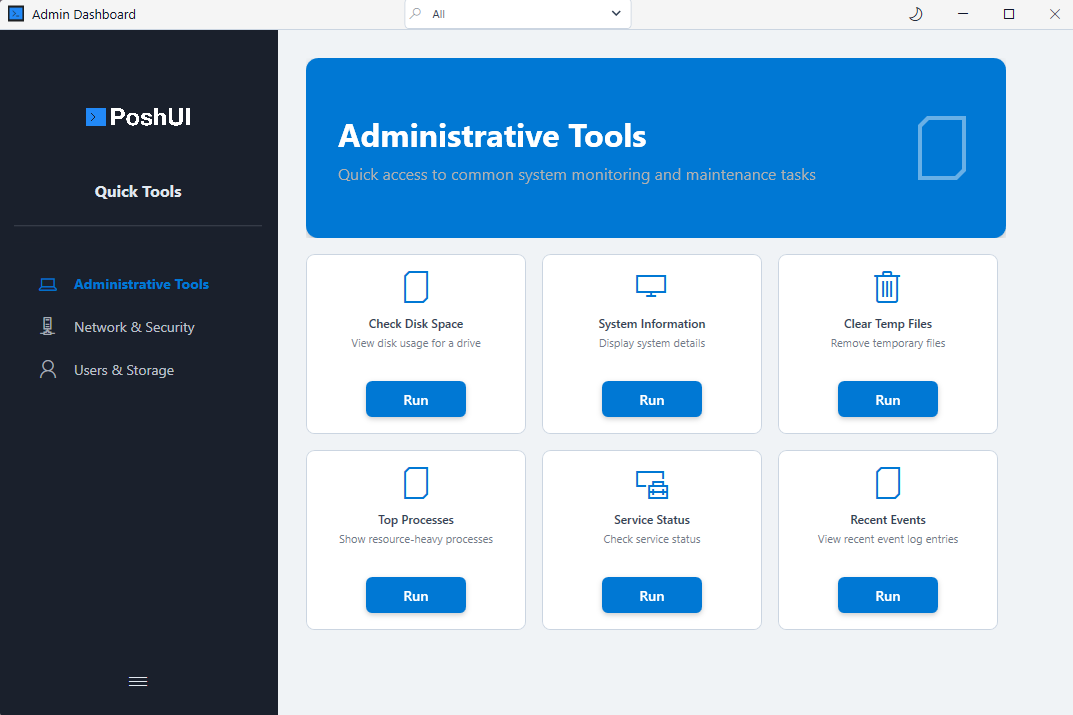
Why Script Cards?
Script Cards bridge the gap between IT professionals who write PowerShell and end users or colleagues who need to run those scripts. Instead of teaching someone to open PowerShell, navigate to a folder, and type commands with the right parameters, you give them a button.
Common use cases:
- IT Help Desk - Give support staff tools to reset passwords, check system status, or restart services
- Team Tooling - Share your automation scripts with colleagues who prefer a GUI
- Self-Service Portals - Let users run approved operations without submitting tickets
- Training Environments - Provide guided tools for new team members
How It Works
When a user clicks a Script Card:
- A dialog opens with input fields for each parameter (automatically generated from your script)
- The user fills in values using familiar controls (text boxes, dropdowns, file pickers)
- They click "Run" and see real-time output in an embedded console
- No PowerShell window, no syntax to remember, no mistakes
Basic Usage
Add-UIScriptCard -Step 'Tools' -Name 'ResetIIS' -Title 'Restart IIS' `
    -Description 'Performs a forced restart of the Web Publishing Service' `
    -Icon '' -Category 'Web Server' `
    -ScriptBlock {
        Restart-Service W3SVC -Force
        Write-Host "IIS has been restarted successfully." -ForegroundColor Green
    }
Parameter Discovery
PoshUI's execution engine uses PowerShell AST (Abstract Syntax Tree) parsing to automatically discover parameters from your script files or script blocks. When you point a ScriptCard to a .ps1 file or provide a ScriptBlock, PoshUI:
- Parses the script using PowerShell's AST parser
- Extracts the
param()block and analyzes each parameter - Reads parameter attributes like
[Parameter(Mandatory)],[ValidateSet()], etc. - Generates UI controls automatically based on the parameter types and attributes
- Creates a parameter dialog that users interact with before script execution
This means you can take any existing PowerShell script with a param() block and turn it into a clickable tool without modifying the script itself.
How It Works
When a user clicks a ScriptCard:
- The parameter dialog opens with auto-generated controls
- User fills in values using the appropriate UI controls
- PoshUI validates the input based on your parameter attributes
- The script executes with the user-provided values
- Real-time output appears in an embedded console
Parameter Type Mapping
PoshUI maps PowerShell parameter types and attributes to UI controls:
| PowerShell Type / Attribute | UI Control | Notes |
|---|---|---|
[string] | TextBox | Single-line text input |
[bool] / [switch] | Toggle Switch | On/Off control |
[int] / [double] | Numeric Spinner | With increment/decrement buttons |
[DateTime] | Date Picker | Calendar control |
[ValidateSet('A','B','C')] | Dropdown Menu | Populated with ValidateSet values |
[WizardFilePath()] | TextBox with Browse | Opens file picker dialog |
[WizardFolderPath()] | TextBox with Browse | Opens folder picker dialog |
[Parameter(Mandatory)] | Required field | Red asterisk indicator |
External Script File Example
You can point to any existing PowerShell script file:
# Create a script file: Get-UserInfo.ps1
param(
    [Parameter(Mandatory)]
    [string]$Username,

    [ValidateSet('Active','Disabled','All')]
    [string]$Status = 'Active',

    [switch]$IncludeGroups
)

Get-ADUser -Identity $Username -Properties * |
    Select-Object Name, EmailAddress, Enabled, LastLogonDate

if ($IncludeGroups) {
    Get-ADPrincipalGroupMembership -Identity $Username
}
Then add it as a ScriptCard:
Add-UIScriptCard -Step 'Tools' -Name 'GetUser' -Title 'Get User Info' `
    -Description 'Retrieve Active Directory user information' `
    -Icon '' `
    -ScriptPath "$PSScriptRoot\Scripts\Get-UserInfo.ps1"
When clicked, PoshUI automatically generates:
- A required text box for
$Username(marked with red asterisk) - A dropdown for
$Statuswith options: Active, Disabled, All (default: Active) - A toggle switch for
$IncludeGroups(default: Off)
Example with Parameters
Add-UIScriptCard -Step 'Tools' -Name 'PingTest' -Title 'Ping Host' `
    -ScriptBlock {
        param(
            [Parameter(Mandatory)]
            [string]$ComputerName,

            [ValidateRange(1,10)]
            [int]$Count = 4
        )
        Test-Connection -ComputerName $ComputerName -Count $Count
    }
File and Folder Picker Example
Use the [WizardFilePath()] and [WizardFolderPath()] attributes to add browse buttons for path selection:
Add-UIScriptCard -Step 'Tools' -Name 'CopyFiles' -Title 'Copy Files' `
    -ScriptBlock {
        param(
            [Parameter(Mandatory)]
            [WizardFolderPath()]
            [string]$SourceFolder,

            [Parameter(Mandatory)]
            [WizardFolderPath()]
            [string]$DestinationFolder,

            [WizardFilePath()]
            [string]$LogFile
        )
        Copy-Item -Path "$SourceFolder\*" -Destination $DestinationFolder -Recurse
        "Copied files from $SourceFolder to $DestinationFolder" | Out-File $LogFile
    }
When the dialog opens, each path parameter displays a text box with a "Browse" button that opens the appropriate system dialog.
Advanced Configuration
External Scripts
You can point a ScriptCard to an existing .ps1 file on disk.
Add-UIScriptCard -Step 'Admin' -Name 'HealthCheck' -Title 'System Health' `
    -ScriptPath "$PSScriptRoot\Scripts\Invoke-HealthCheck.ps1"
Default Parameters
Pre-populate the parameter dialog with specific values.
Add-UIScriptCard -Step 'Tools' -Name 'DiskCheck' -Title 'Check C: Drive' `
    -ScriptBlock { param($Drive) Get-PSDrive $Drive } `
    -DefaultParameters @{ Drive = 'C' }
Performance & Isolation
- Isolated Runspaces: Each script execution runs in its own PowerShell session, preventing state contamination.
- Async Execution: The dashboard remains responsive while the script is running.
- Thread Safety: UI updates from
Write-HostandWrite-Outputare handled safely across threads.
Next: Platform Architecture