
Key Features
PoshUI enables IT professionals to build professional Windows 11-style interfaces using PowerShell cmdlets—no WPF, XAML, or C# knowledge required.
Four PowerShell Modules
PoshUI provides four independent modules that can be used separately or together:
Canvas (new in v1.4.0)
Free-form apps — a blank page and ~85 cmdlets instead of a fixed shell. A single .ps1 is the application: no XAML, no MVVM, no project scaffolding, no build step. Canvas can express the wizard, dashboard and workflow patterns below in one page.
Core Capabilities:
- The full WPF panel set (Grid, VStack, HStack, Wrap, Dock, absolute X/Y) with Card / Panel / Expander / Tabs / Viewbox containers and a GridSplitter for resizable panes
- ~55 control types, plus menu bars, charts, reactive state, animation, secondary windows and shortcuts
- Engine-native workflow runner (
-Engine) — steps run on their own runspace with live progress, per-step retry, timeouts, skip conditions and reboot-resume - Off-gate script cards — long jobs stream output live without freezing the rest of the app
- Declarative cascading fields (
-DependsOn/-OptionsScript) and master/detail grids (-OnChange) - Raw XAML escape hatch for anything the cmdlets don't cover, still drivable from PowerShell
→ About Canvas · Capability Reference · Agent Authoring Guide
Wizards
Step-by-step guided interfaces for configuration, deployment, and setup tasks. Perfect for server provisioning, application deployment, and user onboarding.
Core Capabilities:
- 12+ built-in input controls (text, dropdowns, dates, file pickers)
- Multi-step navigation with validation
- Live execution console showing real-time PowerShell output
- Dynamic controls with cascading dropdowns
- Custom branding and styling
Dashboards
Card-based monitoring interfaces with real-time data visualization. Perfect for system monitoring, KPI displays, and IT operations centers.
Core Capabilities:
- MetricCards for KPIs and system metrics
- GraphCards with bar, line, area, and pie charts
- DataGridCards for tabular data with sorting and filtering
- ScriptCards that turn PowerShell scripts into clickable tools
- Live refresh with automatic data updates
- Category filtering for organizing cards
Workflows
Multi-step automated processes with progress tracking and reboot/resume capabilities. Perfect for server deployments, software installations, and maintenance tasks.
Core Capabilities:
- Task-based execution with progress tracking
- Approval gates for manual checkpoints
- Reboot and resume support for long-running processes
- Inter-task data passing
- CMTrace-compatible logging
- Error handling and retry logic
ScriptCards: Turn Scripts into Tools
One of PoshUI's most powerful features is the ability to turn PowerShell scripts into clickable tools that anyone can use—no command line knowledge required.
Why ScriptCards Matter:
- Help Desk Teams - Give support staff tools to reset passwords, check system status, or restart services
- Self-Service Portals - Let users run approved operations without submitting tickets
- Team Collaboration - Share automation scripts with colleagues who prefer a GUI
- Training - Provide guided tools for new team members learning your infrastructure
Example:
Add-UIScriptCard -Step 'Tools' -Name 'RestartIIS' `
    -Title 'Restart IIS Service' `
    -ScriptBlock { Restart-Service W3SVC -Force } `
    -Description 'Restarts the IIS web service' `
    -Icon 'Refresh'
Learn more about ScriptCards →
Rich Control Library
PoshUI provides over 12 built-in controls for building professional interfaces:
Input Controls:
- TextBox, MultiLine, Password
- Dropdown (static and editable)
- ListBox, OptionGroup (radio buttons)
- Checkbox, Toggle switches
- Numeric spinner, Date picker
- File picker, Folder picker
Display Controls:
- Card (informational content)
- Banner (hero sections)
- Progress bars
- Icons and images
Dynamic Controls:
- Cascading dropdowns with scriptblock data sources
- Controls that show/hide based on user input
- Real-time validation and error messages
Data Visualization
Build professional monitoring dashboards with specialized visualization cards:
MetricCards - Display KPIs with trends and targets
Add-UIMetricCard -Step 'Dashboard' -Name 'CPU' -Title 'CPU Usage' `
    -Value { (Get-CimInstance Win32_Processor).LoadPercentage } `
    -Unit '%' -Target 80 -Trend 'down'
GraphCards - Visualize data with charts (Bar, Line, Area, Pie)
Add-UIChartCard -Step 'Dashboard' -Name 'Trends' -Title 'Usage Trends' `
    -ChartType 'Line' -Data $chartData
DataGridCards - Display tabular data with sorting and filtering
Add-UITableCard -Step 'Dashboard' -Name 'Processes' -Title 'Top Processes' `
    -Data (Get-Process | Select-Object -First 10)
Learn more about Visualization Cards →
Workflow Automation
PoshUI.Workflow enables enterprise-grade automation with features IT professionals need:
Reboot & Resume - Workflows can save their state, request a system reboot, and automatically resume from the next task after login.
Add-UIWorkflowTask -Name 'InstallUpdates' -Title 'Install Windows Updates' `
    -ScriptBlock {
        Install-WindowsUpdate -AcceptAll
        $PoshUIWorkflow.RequestReboot("Windows updates require restart")
    }
Progress Tracking - Two modes for different scenarios:
- Auto-progress: Simple tasks that complete quickly
- Manual progress: Precise control with
UpdateProgress()for long-running operations
Data Passing - Share data between wizard inputs, workflow tasks, and execution context using $PoshUIContext.
Professional Theming
PoshUI features native Windows 11-style theming with automatic dark mode support:
- Auto Theme - Automatically detects Windows system theme
- Light Theme - High-contrast light theme with white backgrounds
- Dark Theme - Modern dark theme with deep charcoal backgrounds
- Theme Toggle (v1.3.0) - Sun/moon button in title bar lets users switch themes at runtime
- Dual-Mode Custom Themes (v1.3.0) - Define independent color palettes for light and dark modes
- 24 Color Slots - Override any combination of background, sidebar, accent, text, input, and typography settings
- Consistent Styling - All controls follow Windows 11 design language
# Built-in themes
Show-PoshUIWizard -Theme 'Auto'  # Follows system theme

# Custom dual-mode themes (v1.3.0)
Set-UITheme -Light @{
    AccentColor       = '#E91E63'
    SidebarBackground = '#880E4F'
} -Dark @{
    AccentColor       = '#00BFA5'
    SidebarBackground = '#0A1A18'
}PNG Icons (v1.3.0)
Use full-color PNG or ICO images instead of monochrome glyphs for a richer visual experience:
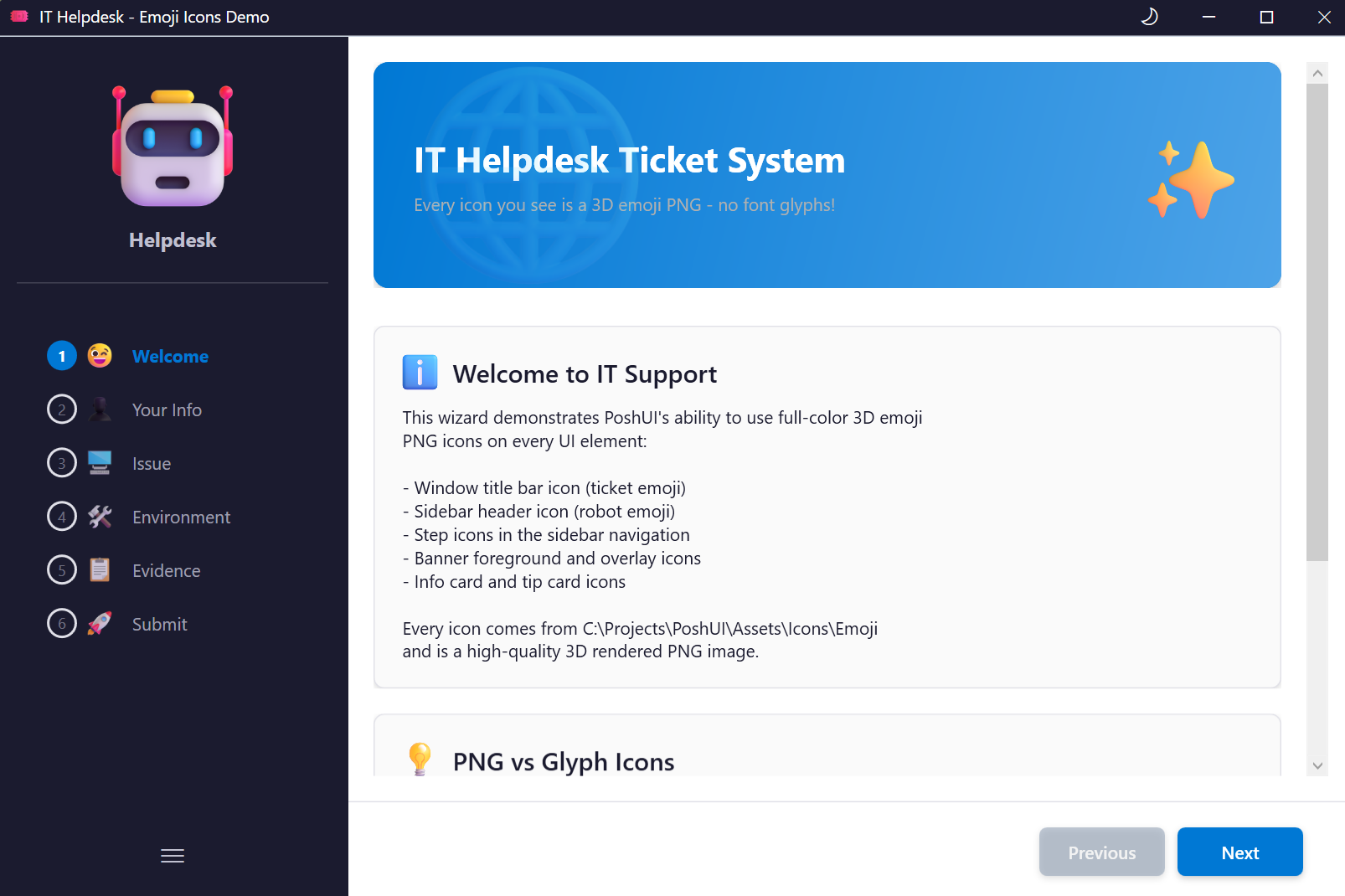
- Sidebar steps - Colorful icons in the navigation sidebar
- Metric cards - Branded icons on KPI displays
- Info cards - Visual context on informational cards
- Banners - Overlay images on hero sections
- Carousel slides - Per-slide PNG icons in carousel banners (Wizard, Dashboard, Workflow)
- Branding - Full-color logos in sidebar header and title bar
# PNG icon on a wizard/dashboard step
Add-UIStep -Name 'Config' -Title 'Configuration' -IconPath 'C:\Icons\gear_3d.png'

# PNG icon on a metric card
Add-UIMetricCard -Step 'Overview' -Name 'CPU' -Title 'CPU' -Value 75 -Unit '%' `
    -IconPath 'C:\Icons\cpu_3d.png'

# PNG icons on carousel slides
$carouselItems = @(
    @{
        Title = 'Performance Dashboard'
        Subtitle = 'Real-time system monitoring'
        BackgroundColor = '#1B3A57'
        IconPath = 'C:\Icons\graph_3d.png'
    },
    @{
        Title = 'Gauge Controls'
        Subtitle = 'Radial gauges show metrics at a glance'
        BackgroundColor = '#DC2626'
        IconPath = 'C:\Icons\stopwatch_3d.png'
    }
)
Add-UIBanner -Step 'Overview' -Title 'Dashboard' -CarouselSlides $carouselItems -AutoRotate $true
PNG icons fall back to glyph icons automatically if the file path is invalid.
Development Tools
PoshUI includes tools to help you build and debug your interfaces:
Get-PoshUIDashboard - Inspect dashboard structure during development
Get-PoshUIDashboard -IncludePropertiesVerbose Output - Enable detailed logging to understand what's happening
Add-UIMetricCard -Step 'Dashboard' -Name 'CPU' -Title 'CPU' -VerboseCMTrace Logging - All operations are logged in CMTrace-compatible format
%LOCALAPPDATA%\PoshUI\Logs\PoshUI_*.logPlatform & Compatibility
Requirements:
- Windows 10/11 or Windows Server 2016+ (x64)
- .NET Framework 4.8 (pre-installed on Windows 10+)
- Windows PowerShell 5.1 (included with Windows)
Architecture:
- Built on .NET Framework 4.8
- Hybrid PowerShell + WPF architecture
- Zero external dependencies
- Single executable distribution
Enterprise Ready:
- Works in restricted environments (air-gapped systems)
- No internet connection required
- No third-party dependencies
- Compatible with SCCM/MECM task sequences
Get Started
Ready to build your first PoshUI interface?
- Installation - Download and install PoshUI
- Get Started Guide - Create your first wizard, dashboard, or workflow
- Examples - Explore working demonstrations
- Cmdlet Reference - Complete PowerShell cmdlet documentation
License: MIT License
Repository: github.com/Kanders-II/PoshUI